Switching phones is something everyone does, but for Binance users it involves more than just data migration — there are security elements like two-factor authentication, login status, and device authorization. Mishandling these could lock you out. This guide covers how to fully migrate Binance APP to a new device. Register on Binance and learn these steps early.

Pre-Switch Essentials
While your old phone still works, complete these steps:
- Back up Google Authenticator key: The most critical step. Find the key in Binance APP security settings and save it
- Confirm phone number and email work: Ensure they can receive verification codes
- Remember your password: If you always use fingerprint login, you may have forgotten it — test it
- Check SMS verification settings: If changing phone numbers too, update the bound number in Binance first
Migrating Google Authenticator
Method 1: Built-in Transfer Feature
- Old phone: Open Google Authenticator > Menu > Export accounts
- Select Binance account, generate QR code
- New phone: Install Google Authenticator > Import > Scan QR code
Method 2: Manual Key Entry
- New phone: Install Google Authenticator
- Select "Enter setup key"
- Enter your backed-up key
- Verify the codes match on both phones
Installing and Logging In on New Phone
- Download the Binance APP on the new phone
- Log in with your email/phone and password
- Complete all security verifications (email, SMS, Google Authenticator)
- Set up Face ID or fingerprint on the new device
If Your Old Phone Is Gone
- Have backup key: Restore authenticator on new phone with the key
- No backup key but still have phone number: Apply to reset authenticator via Binance website with face verification
- Phone number changed too: Contact Binance support with ID documents — typically 3-7 business days
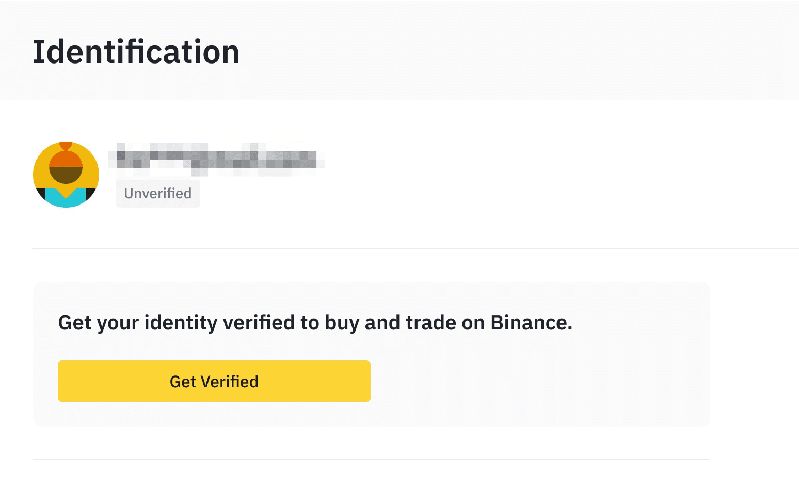
Post-Switch Security Checklist
- Confirm all verification methods work in security settings
- Remove old phone authorization from device management
- Check withdrawal whitelist hasn't been tampered with
- Confirm anti-phishing code is still set
- If old phone was lost, change password immediately
FAQ
Q: Does switching phones but keeping the same number affect Binance? A: Minimal impact. SMS verification works fine. Just focus on migrating Google Authenticator.
Q: Can two phones be logged into Binance simultaneously? A: Yes, but new device login requires security verification. Manually log out from the old device after switching.
Q: Forgot to back up authenticator key — what now? A: If old phone works, back it up now. If not, apply for authenticator reset on Binance website — typically 24-48 hours.
Q: Why does the new phone require face verification? A: Binance has risk controls for new device logins. This is a one-time verification for account security.
Q: Anything special when switching between iPhone and Android? A: No difference for Binance. Just migrate Google Authenticator manually, as it doesn't sync across platforms automatically.